DNS Lookup Tool – Complete Guide to Check & Troubleshoot DNS Records
Have you ever launched a new website and wondered why it is not showing up for some people? Or maybe you set up email for your domain but messages are going to spam or not arriving at all?
I remember launching my first website. I had the site ready, the hosting paid for, and the domain registered. I thought everything was perfect. But when I typed my domain name, nothing loaded. I waited an hour. Still nothing. I waited a day. Nothing. I was frustrated and had no idea what was wrong.
After hours of research, I learned about DNS. It turns out I had entered the wrong IP address in my A record. A simple one-character mistake made my entire website invisible to the world. Once I fixed it, the site loaded within minutes.
That experience taught me how critical DNS is. This guide will explain everything you need to know about DNS lookup and record types. No networking degree required. Just practical knowledge you can use.
Quick access: Use our free DNS lookup tool here
What is DNS? Simple Answer
DNS stands for Domain Name System. Think of it as the internet's phonebook.
When you type "google.com" into your browser, your computer does not understand that name. It needs an IP address like "142.250.190.46" to find Google's servers. DNS is what translates the human-friendly name (google.com) into the machine-friendly IP address.
Simple analogy:
- You want to call a friend. You know their name but not their phone number.
- You look up their name in your phone's contacts.
- The contact book gives you their phone number.
- DNS works the same way for websites.
How DNS Works – The Step-by-Step Process
When you type a website address into your browser, here is what happens behind the scenes.
Step 1: You type a domain You enter "example.com" in your browser and press Enter.
Step 2: Browser checks cache Your browser first checks if it already knows the IP address from a recent visit.
Step 3: Computer checks hosts file Your operating system checks its local hosts file for manual entries.
Step 4: Recursive resolver query Your computer asks your ISP's DNS server (recursive resolver) to find the IP address.
Step 5: Root server query The recursive resolver asks a root server. The root server says "I don't know, but ask the .com server."
Step 6: TLD server query The resolver asks the .com TLD server. It says "I don't know, but ask the authoritative nameserver for example.com."
Step 7: Authoritative nameserver query The resolver asks the authoritative nameserver. It returns the IP address.
Step 8: Response to browser The resolver sends the IP address back to your computer. Your browser loads the website.
This all happens in milliseconds. You never see it happening.
What is a DNS Lookup Tool?
A DNS lookup tool lets you query DNS records for any domain. Instead of waiting for your browser to do it, you can manually ask "What records does this domain have?"
Why use a DNS lookup tool:
- Troubleshooting: Find out why a website is not loading
- Verification: Check if your DNS records are configured correctly
- Security: Verify SPF, DKIM, DMARC records for email security
- Migration: Confirm DNS changes have propagated
- Research: See how other domains are configured
Our DNS lookup tool lets you query any domain and see all its DNS records instantly.
All DNS Record Types Explained (With Examples)
1. A Record (Address Record)
The A record maps a domain name to an IPv4 address. This is the most basic DNS record. Without it, your website will not load.
What it does: Points your domain to a server's IP address
Example:
example.com. 3600 IN A 192.0.2.1
Breakdown:
example.com.= the domain name3600= TTL (Time to Live) in seconds (1 hour)IN= Internet classA= record type192.0.2.1= the IP address
Common use cases:
- Point your main domain to your web hosting server
- Point subdomains like
blog.example.comto different servers - Multiple A records for load balancing
How to check A records with our tool:
- Enter your domain name
- Select "A" as record type
- Click Lookup
- See all IP addresses your domain points to
2. AAAA Record (IPv6 Address Record)
AAAA records are the same as A records but for IPv6 addresses. IPv6 is the newer version of IP addresses with many more available addresses.
What it does: Points your domain to an IPv6 address
Example:
example.com. 3600 IN AAAA 2001:0db8:85a3:0000:0000:8a2e:0370:7334
Why you need AAAA records:
- IPv4 addresses are running out
- Many internet users now have IPv6 connections
- Modern websites should support both IPv4 and IPv6
How to check AAAA records:
- Enter your domain
- Select "AAAA" as record type
- Click Lookup
- See IPv6 addresses
3. MX Record (Mail Exchange Record)
MX records tell email servers where to deliver email for your domain. If these are wrong, your email will not work.
What it does: Specifies which mail servers handle email for your domain
Example:
example.com.    3600    IN    MX    10 mail1.example.com.
example.com.    3600    IN    MX    20 mail2.example.com.
Priority explained:
- Lower number = higher priority
- Email servers try the lowest priority first
- If the primary server fails, they try the next priority
Priority 10 = Primary mail server (try first) Priority 20 = Backup mail server (try if primary fails) Priority 30 = Secondary backup (try if both fail)
Common MX configurations:
Google Workspace (Gmail for business):
example.com.    3600    IN    MX    1 ASPMX.L.GOOGLE.COM.
example.com.    3600    IN    MX    5 ALT1.ASPMX.L.GOOGLE.COM.
example.com.    3600    IN    MX    5 ALT2.ASPMX.L.GOOGLE.COM.
example.com.    3600    IN    MX    10 ALT3.ASPMX.L.GOOGLE.COM.
example.com.    3600    IN    MX    10 ALT4.ASPMX.L.GOOGLE.COM.
Microsoft 365:
example.com. 3600 IN MX 0 example-com.mail.protection.outlook.com.
How to check MX records:
- Enter your domain
- Select "MX" as record type
- Click Lookup
- See all mail servers for your domain
4. CNAME Record (Canonical Name Record)
CNAME records create aliases. They point one domain name to another domain name.
What it does: Creates an alias from one domain to another
Example:
www.example.com. 3600 IN CNAME example.com.
How it works:
- When someone goes to
www.example.com, DNS says "go ask example.com" - DNS then looks up the A record for
example.com - The browser gets the IP address from that lookup
Common CNAME uses:
wwwpointing to the main domainblogpointing to a blogging platformshoppointing to an e-commerce platformmailpointing to email service provider
Example CNAMEs for popular services:
Shopify:
shop.example.com. 3600 IN CNAME shops.myshopify.com.
WordPress.com:
blog.example.com. 3600 IN CNAME example.wordpress.com.
GitHub Pages:
docs.example.com. 3600 IN CNAME username.github.io.
Important CNAME limitations:
- Cannot be used on the root domain (example.com) - use ALIAS or A record instead
- Cannot have other record types with the same name as a CNAME
- Can create chains (CNAME to CNAME) but this slows down resolution
5. TXT Record (Text Record)
TXT records store text information about your domain. They are used for verification, email security, and other purposes.
What it does: Stores arbitrary text information
Example:
example.com. 3600 IN TXT "This is a verification text"
Common TXT record uses:
SPF (Sender Policy Framework) - Prevents email spoofing:
example.com. 3600 IN TXT "v=spf1 include:_spf.google.com ~all"
This tells receiving email servers which IP addresses are allowed to send email from your domain.
DKIM (DomainKeys Identified Mail) - Signs outgoing email:
selector._domainkey.example.com. 3600 IN TXT "v=DKIM1; k=rsa; p=MIGfMA0GCSqGSIb3DQEBAQUAA4GNADCBiQKBgQC..."
This adds a digital signature to your emails to prove they came from you.
DMARC (Domain-based Message Authentication) - Tells receivers what to do with failing emails:
_dmarc.example.com. 3600 IN TXT "v=DMARC1; p=none; rua=mailto:dmarc@example.com"
This tells email servers what to do when SPF or DKIM fails.
Domain verification (Google Search Console):
example.com. 3600 IN TXT "google-site-verification=abc123def456"
How to check TXT records:
- Enter your domain
- Select "TXT" as record type
- Click Lookup
- See all text records
6. NS Record (Name Server Record)
NS records specify which DNS servers are authoritative for your domain. These are the servers that actually hold your DNS records.
What it does: Points to the DNS providers that manage your domain's records
Example:
example.com.    86400    IN    NS    ns1.hostingprovider.com.
example.com.    86400    IN    NS    ns2.hostingprovider.com.
Why multiple NS records:
- Redundancy (if one server fails, others still work)
- Load distribution
- Faster responses (different geographic locations)
Common NS record providers:
Cloudflare:
example.com.    86400    IN    NS    ns1.cloudflare.com.
example.com.    86400    IN    NS    ns2.cloudflare.com.
Amazon Route 53:
example.com.    86400    IN    NS    ns-1.awsdns-1.com.
example.com.    86400    IN    NS    ns-2.awsdns-2.net.
GoDaddy:
example.com.    86400    IN    NS    ns1.godaddy.com.
example.com.    86400    IN    NS    ns2.godaddy.com.
How to check NS records:
- Enter your domain
- Select "NS" as record type
- Click Lookup
- See all name servers for your domain
7. SOA Record (Start of Authority Record)
The SOA record provides administrative information about your DNS zone. Every domain has exactly one SOA record.
What it does: Provides metadata about the DNS zone
Example:
example.com.    3600    IN    SOA    ns1.example.com. admin.example.com. (
                                    2023092001  ; Serial number
                                    7200        ; Refresh (2 hours)
                                    3600        ; Retry (1 hour)
                                    1209600     ; Expire (14 days)
                                    3600       ) ; Minimum TTL (1 hour)
SOA fields explained:
| Field | What it means | Typical value |
|---|---|---|
| Primary nameserver | The master DNS server | ns1.example.com |
| Responsible person | Admin email (with @ replaced by .) | admin.example.com |
| Serial number | Version number of the zone file | YYYYMMDDNN |
| Refresh | How often secondary servers check for updates | 7200-86400 seconds |
| Retry | How long to wait after a failed refresh | 1800-7200 seconds |
| Expire | How long secondary serves data without refresh | 604800-1209600 seconds |
| Minimum TTL | Default TTL for negative caching | 300-3600 seconds |
Serial number format (best practice):
YYYYMMDDNN
- YYYY = year (2023)
- MM = month (09)
- DD = day (20)
- NN = revision (01, 02, 03...)

Example: 2023092001 means September 20, 2023, first revision
When to update serial number:
- Whenever you change any DNS record
- Increment the revision number
- Use the current date
8. PTR Record (Pointer Record) – Reverse DNS
PTR records do the opposite of A records. They map an IP address back to a domain name.
What it does: Reverse lookup (IP to domain name)
Example:
1.2.0.192.in-addr.arpa. 3600 IN PTR mail.example.com.
Why PTR records matter:
- Many email servers reject mail from IPs without PTR records
- Used for network troubleshooting
- Helps identify servers in logs
How to check PTR records:
- Enter an IP address (not a domain name)
- Select "PTR" as record type
- Click Lookup
- See what domain is associated with the IP
DNS Record Types Quick Reference Table
| Record Type | Purpose | Example | When to use |
|---|---|---|---|
| A | Maps domain to IPv4 address | example.com → 192.0.2.1 | Always needed for websites |
| AAAA | Maps domain to IPv6 address | example.com → 2001:db8::1 | For IPv6 support |
| MX | Email server addresses | mail.example.com priority 10 | For email delivery |
| CNAME | Domain alias | www → example.com | For subdomains pointing to external services |
| TXT | Text information | SPF, DKIM, DMARC records | For email security, domain verification |
| NS | Name servers | ns1.provider.com | Specifies DNS provider |
| SOA | Zone administration | Admin contact, serial number | Automatically created, rarely changed |
| PTR | Reverse lookup (IP to domain) | 192.0.2.1 → example.com | For email servers, network diagnostics |
How to Perform DNS Lookup – Step by Step
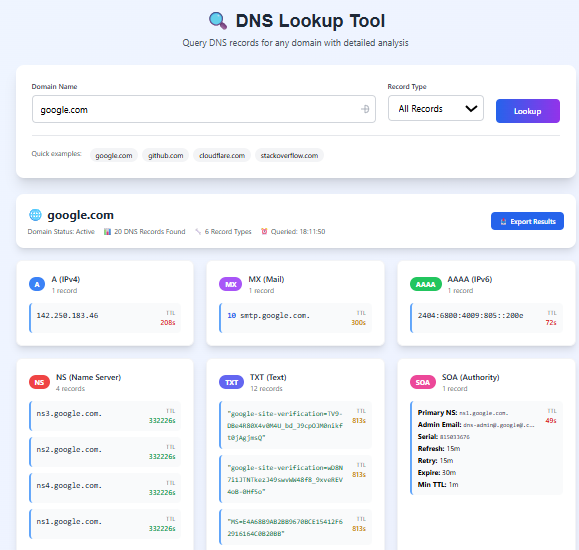
Using our DNS lookup tool is simple.
Step 1: Enter the domain name you want to check (e.g., google.com)
Step 2: Select the record type you want to look up:
- ALL = see all records at once
- A = see IPv4 addresses
- AAAA = see IPv6 addresses
- MX = see mail servers
- CNAME = see aliases
- TXT = see text records
- NS = see name servers
- SOA = see zone information
Step 3: Click the Lookup button
Step 4: Review the results. The tool shows:
- The queried domain
- The record type
- The TTL (Time to Live)
- The record value(s)
Step 5: Export results if needed for documentation
Real-Life Examples of DNS Lookup
Example 1: Website Not Loading
Problem: Your website mybusiness.com is not loading. You changed hosting providers yesterday.
DNS lookup steps:
- Look up A record for
mybusiness.com - Check if the IP address matches your new hosting provider
- If the old IP still shows, DNS has not propagated yet
- If there is no A record at all, that is the problem
Solution: If no A record exists, add one. If old IP still shows, wait for propagation (up to 48 hours).
Example 2: Email Not Arriving
Problem: Emails sent to you@mybusiness.com are bouncing back.
DNS lookup steps:
- Look up MX records for
mybusiness.com - Check if any MX records exist
- Verify the mail server hostnames are correct
- Look up A records for those mail server hostnames
Solution: If no MX records exist, add them. If hostnames have no A records, add those too.
Example 3: Email Going to Spam
Problem: Emails from your domain go to recipients' spam folders.
DNS lookup steps:
- Look up TXT records for
mybusiness.com - Check if SPF record exists
- Verify DKIM record exists
- Check DMARC record exists
Solution: Add proper SPF, DKIM, and DMARC records. This authenticates your email and improves deliverability.
Example 4: Subdomain Not Working
Problem: blog.mybusiness.com shows an error, but mybusiness.com works fine.
DNS lookup steps:
- Look up A record for
blog.mybusiness.com - If no A record, look up CNAME record
- If CNAME exists, look up the target domain
- Verify the target has proper A records
Solution: Add the missing A or CNAME record for the subdomain.
Example 5: DNS Propagation Check
Problem: You updated your website IP address 2 hours ago. Some people see the new site, some see the old one.
DNS lookup steps:
- Look up A record from different DNS servers
- Use a DNS propagation checker
- Compare results from multiple geographic locations
Solution: Wait 24-48 hours for full global propagation. Lower TTL values before the change would have helped.
Common DNS Problems and How to Fix Them
Problem 1: No A Record
Symptom: Website does not load at all. Browser shows "Server not found."
Cause: Your domain has no A record pointing to a server IP address.
Fix: Add an A record with your web server's IP address.
Problem 2: Wrong IP Address in A Record
Symptom: Website loads, but shows a different site (or an error page).
Cause: Your A record points to the wrong IP address.
Fix: Update the A record with the correct IP address from your hosting provider.
Problem 3: Missing MX Records
Symptom: Emails to your domain bounce back.
Cause: No MX records telling email servers where to deliver mail.
Fix: Add MX records for your email provider (Google Workspace, Microsoft 365, etc.).
Problem 4: No SPF Record
Symptom: Your emails go to spam folders.
Cause: Receiving email servers cannot verify that your email came from an authorized server.
Fix: Add an SPF TXT record listing all servers that send email from your domain.
Problem 5: TTL Too High Before Migration
Symptom: After changing DNS, old records persist for days.
Cause: TTL was set high (e.g., 86400 seconds = 24 hours) before the change.
Fix: Lower TTL to 300-600 seconds (5-10 minutes) at least 24 hours before planned changes.
Problem 6: CNAME on Root Domain
Symptom: Some DNS lookups work, others fail. Inconsistent behavior.
Cause: You tried to set a CNAME on the root domain (example.com). This is not allowed by DNS standards.
Fix: Use an A record on the root domain. Use CNAME on subdomains only (www, blog, shop).
DNS Propagation – What It Is and How Long It Takes
DNS propagation is the time it takes for DNS changes to spread across all DNS servers worldwide.
Why Propagation Takes Time
When you change a DNS record, the change is instant on your DNS provider's servers. But every other DNS server in the world has cached the old value. They will not ask for the new value until their cache expires (based on TTL).
Propagation Timeline
| Time | What happens |
|---|---|
| Immediate | Your DNS provider's servers have the new value |
| 5-10 minutes | Some public DNS servers (Google, Cloudflare) may update |
| 1-4 hours | Most major DNS providers have updated |
| 6-12 hours | Most ISPs have updated |
| 24-48 hours | All DNS servers should have updated (worst case) |
How to Speed Up Propagation
- Lower TTL before changes: Set TTL to 300 seconds (5 minutes) at least 24 hours before your planned change.
- Use fast DNS providers: Cloudflare, Google DNS, and Amazon Route 53 propagate faster.
- Clear local DNS cache: Run
ipconfig /flushdnson Windows orsudo dscacheutil -flushcacheon Mac.
DNS Security – SPF, DKIM, DMARC Explained
Email authentication records are critical for preventing email spoofing and improving deliverability.
SPF (Sender Policy Framework)
SPF tells receiving email servers which IP addresses are allowed to send email from your domain.
SPF record example:
example.com. IN TXT "v=spf1 include:_spf.google.com include:sendgrid.net ~all"
SPF mechanisms:
v=spf1= SPF version 1include:_spf.google.com= allow Google Workspace serversinclude:sendgrid.net= allow SendGrid servers~all= soft fail for other servers (can also use -all for hard fail)
DKIM (DomainKeys Identified Mail)
DKIM adds a digital signature to your emails. Receiving servers can verify the signature to confirm the email came from you.
DKIM record example:
google._domainkey.example.com. IN TXT "v=DKIM1; k=rsa; p=MIGfMA0GCSqGSIb3DQEBAQUAA4GNADCBiQKBgQC..."
DMARC (Domain-based Message Authentication)
DMARC tells receiving email servers what to do when SPF or DKIM fails.
DMARC record example:
_dmarc.example.com. IN TXT "v=DMARC1; p=reject; rua=mailto:dmarc-reports@example.com"
DMARC policies:
p=none= monitor only (do nothing with failures)p=quarantine= mark failing emails as spamp=reject= reject failing emails entirely
How to Use Our DNS Lookup Tool
Our DNS lookup tool gives you complete visibility into any domain's DNS configuration.
Features:
- Look up any domain name
- Query all standard record types (A, AAAA, MX, CNAME, TXT, NS, SOA, PTR)
- See TTL values
- Copy results for documentation
- Clean, easy-to-read output
Step-by-step:
- Go to the DNS lookup tool
- Enter the domain name you want to investigate
- Select the record type (or choose ALL to see everything)
- Click Lookup
- Review the results
Frequently Asked Questions
Q: How to perform DNS lookup for a domain?
A: Use our DNS lookup tool. Enter your domain name, select the record type, and click Lookup. You will see all DNS records instantly.
Q: What is the best free DNS lookup tool?
A: Our DNS lookup tool is completely free, supports all record types, and gives instant results with no registration.
Q: How to check DNS records of a domain?
A: Use a DNS lookup tool. Enter the domain name and select the record type you want to check (A, MX, CNAME, TXT, etc.).
Q: What is an A record in DNS?
A: An A record maps a domain name to an IPv4 address. For example, example.com -> 192.0.2.1. It is the most basic DNS record needed for websites.
Q: How to check MX records for a domain?
A: Use a DNS lookup tool and select MX record type. The tool will show all mail servers for that domain with their priorities.
Q: What is DNS propagation and how long does it take?
A: DNS propagation is the time it takes for DNS changes to spread worldwide. It typically takes 24-48 hours, but can be as fast as a few minutes with low TTL values.
Q: How to check SPF record for a domain?
A: Look up the TXT record for the domain. The SPF record starts with "v=spf1". Our tool will show all TXT records including SPF.
Q: What is the difference between A and AAAA records?
A: A records are for IPv4 addresses (like 192.0.2.1). AAAA records are for IPv6 addresses (like 2001:db8::1). IPv6 is the newer standard with more addresses.
Q: Can I use CNAME on root domain?
A: No. DNS standards do not allow CNAME on the root domain (example.com). Use an A record instead. CNAME works on subdomains like www.example.com.
Q: What are NS records?
A: NS records specify which DNS servers are authoritative for your domain. They tell the internet where to find your domain's DNS records.
Q: How to verify DKIM record?
A: Look up TXT record for selector._domainkey.yourdomain.com. The selector is provided by your email service provider.
Q: What is reverse DNS lookup?
A: Reverse DNS lookup (PTR record) maps an IP address back to a domain name. It is the opposite of a normal DNS lookup.
Q: Why are my DNS changes not showing?
A: DNS changes take time to propagate (up to 48 hours). Check with our tool from different locations. Also clear your local DNS cache.
Q: How often should I check DNS records?
A: Check when you make changes. For monitoring, check weekly or monthly to catch unauthorized modifications.
Q: Is the DNS lookup tool free?
A: Yes. Completely free. No signup. No limits.
My Final Advice
After years of managing DNS for multiple domains and troubleshooting countless DNS issues, here is what I have learned.
Always verify DNS changes. After updating any DNS record, use a lookup tool to confirm the change is live on your DNS provider's servers.
Lower TTL before planned changes. If you know you will be changing IP addresses or mail servers, lower the TTL to 300 seconds (5 minutes) at least 24 hours in advance.
Check all record types during setup. When setting up a new domain, verify A, MX, TXT (SPF), and CNAME records are all correct.
Document your DNS configuration. Keep a record of all DNS records for your domains. This helps with troubleshooting and migrations.
Use multiple NS records. Always have at least two name servers. Better yet, use different providers for redundancy.
Set up email authentication (SPF, DKIM, DMARC). This prevents email spoofing and improves deliverability. Many email providers require these now.
Test DNS changes before big migrations. Use a staging subdomain or change TTL temporarily to test before changing production records.
And finally, use a good DNS lookup tool. Our tool gives you instant visibility into any domain's DNS configuration. It is free and works on any device.
Perform DNS Lookup Now – Free Tool
Have questions about DNS lookup or troubleshooting specific DNS issues? Leave a comment below. I try to answer every one.
Tags: dns lookup tool, how to perform dns lookup, dns records checker, domain name system explained, a record lookup, aaaa record lookup, mx record checker, cname record check, txt record lookup, ns record check, soa record analysis, dns troubleshooting guide, dns propagation check, dns record types explained, dns lookup online free, check dns records of domain, find dns records for website, dns analysis tool, network troubleshooting dns, dns configuration check, dns lookup for email, spf record check, dkim record lookup, dmarc record check, reverse dns lookup, ptr record lookup, dns security check, dns performance test, dns best practices, dns management guide