Text Formatter & Case Converter – Complete Guide to Clean and Transform Text
Have you ever copied text from a PDF or website and ended up with a mess of inconsistent capitalization, extra spaces, and random line breaks? Or maybe you needed to convert a block of text to uppercase for a heading but did not want to retype everything?
I remember working on a blog post where I had copied content from multiple sources. Some sentences were in uppercase. Some were in lowercase. There were extra spaces everywhere. Some lines were duplicated. Cleaning that text manually took me almost an hour. I had to go line by line, fixing capitalization, removing spaces, and deleting duplicates. It was tedious and frustrating.
After that experience, I started looking for a better way. That is when I discovered text formatting tools. Now I can clean and format any text in seconds. This guide will show you how to format, clean, and transform text like a pro.
Quick access: Use our free text formatter here
What is a Text Formatter? Simple Answer
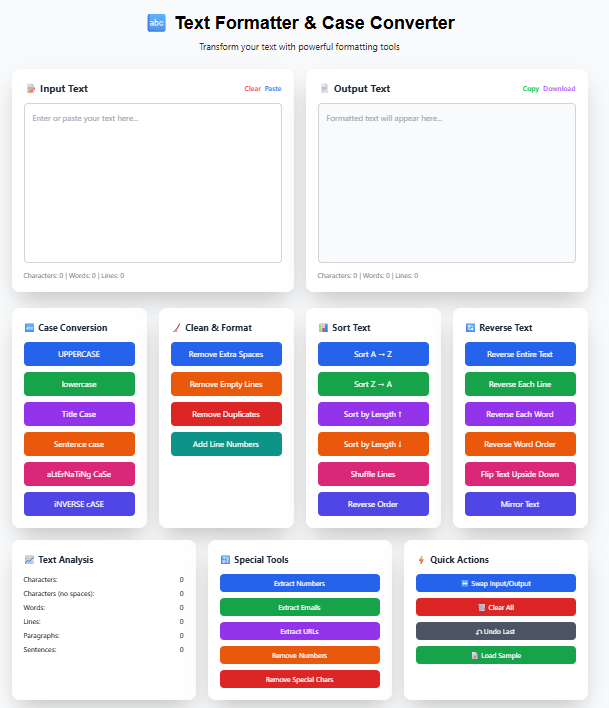
A text formatter is a tool that automatically cleans and transforms text. Instead of manually fixing capitalization, removing extra spaces, or sorting lines, the tool does it all instantly.
What a text formatter can do:
- Change case (uppercase, lowercase, title case, sentence case)
- Remove extra spaces and empty lines
- Sort lines alphabetically or by length
- Reverse text in multiple ways
- Extract numbers, emails, or URLs from messy text
- Count characters, words, lines, and paragraphs
Think of it like a spell checker, but for formatting and structure.
Why Text Formatting Matters
Poorly formatted text causes problems in many situations.
For writers and bloggers:
- Inconsistent capitalization looks unprofessional
- Extra spaces break formatting
- Duplicate lines waste space
- Clean text is easier to read and edit
For developers:
- Code needs consistent formatting
- Log files need cleaning for analysis
- Configuration files need proper structure
- Data extraction requires clean input
For students and researchers:
- Notes need organization
- Citations need consistent formatting
- Research data needs cleaning
- Assignments need professional presentation
For business professionals:
- Emails need proper case
- Reports need clean formatting
- Contact lists need deduplication
- Data extraction from documents
Case Conversion – Changing Text Case
Case conversion changes the capitalization of your text. This is one of the most common text formatting needs.
UPPERCASE
What it does: Converts every letter to uppercase.
Example:
- Input: "Hello World"
- Output: "HELLO WORLD"
When to use:
- Headings and titles
- Emphasis (like shouting or importance)
- Acronyms
- Forms and labels
lowercase
What it does: Converts every letter to lowercase.
Example:
- Input: "Hello World"
- Output: "hello world"
When to use:
- Normalizing text from mixed case sources
- Preparing text for case-sensitive systems
- Casual writing
- Social media posts
Title Case
What it does: Capitalizes the first letter of every major word.
Example:
- Input: "the quick brown fox jumps over the lazy dog"
- Output: "The Quick Brown Fox Jumps Over The Lazy Dog"
When to use:
- Blog post titles
- Article headlines
- Book chapters
- Presentation slides
Rules of title case (standard):
- Capitalize first and last words
- Capitalize nouns, verbs, adjectives, adverbs
- Do not capitalize articles (a, an, the) unless first or last
- Do not capitalize short conjunctions (and, but, or, for, nor)
- Do not capitalize short prepositions (of, in, on, at, by, for, with)
Sentence case
What it does: Capitalizes the first letter of each sentence.
Example:
- Input: "hello world. this is a sentence. and another one."
- Output: "Hello world. This is a sentence. And another one."
When to use:
- Blog post content
- Articles and essays
- Emails
- Most general writing
aLtErNaTiNg CaSe (SpongeBob case)
What it does: Alternates between uppercase and lowercase letters.
Example:
- Input: "Hello World"
- Output: "HeLlO wOrLd"
When to use:
- Creative writing
- Social media humor
- Memes (SpongeBob mocking style)
- Stylistic emphasis
iNVERSE cASE
What it does: Swaps uppercase to lowercase and lowercase to uppercase.
Example:
- Input: "Hello World"
- Output: "hELLO wORLD"
When to use:
- Creative effects
- Stylistic writing
- Fun transformations
Text Cleaning – Removing Unwanted Characters
Text cleaning removes extra spaces, empty lines, and other unwanted elements.
Remove Extra Spaces
What it does: Removes multiple spaces between words and lines.
Example:
- Input: "Hello World. How are you?"
- Output: "Hello World. How are you?"
What gets removed:
- Multiple spaces between words (reduced to single space)
- Spaces before punctuation
- Trailing spaces at end of lines
- Leading spaces at beginning of lines
Remove Empty Lines
What it does: Deletes blank lines from your text.
Example:
- Input: "Line 1\n\n\nLine 2\n\nLine 3"
- Output: "Line 1\nLine 2\nLine 3"
When to use:
- Cleaning copied text from PDFs
- Preparing data for processing
- Removing unnecessary line breaks
- Formatting code or logs
Remove Duplicate Lines
What it does: Deletes repeated lines, keeping only the first occurrence.
Example:
- Input: "apple\nbanana\napple\ncherry\nbanana"
- Output: "apple\nbanana\ncherry"
When to use:
- Cleaning contact lists
- Removing duplicate entries
- Deduplicating data
- Organizing notes
Trim Leading and Trailing Spaces
What it does: Removes spaces at the beginning and end of each line.
Example:
- Input: " Hello World "
- Output: "Hello World"
When to use:
- Cleaning text before processing
- Preparing data for databases
- Formatting code
- Standardizing input
Add Line Numbers
What it does: Adds sequential numbers to the beginning of each line.
Example:
- Input: "First line\nSecond line\nThird line"
- Output: "1. First line\n2. Second line\n3. Third line"
When to use:
- Code reviews
- Document references
- Legal documents
- Teaching materials
Sorting Text – Organizing Your Content
Sorting rearranges your lines in a specific order.
Alphabetical Sort (A to Z)
What it does: Sorts lines in ascending alphabetical order.
Example:
- Input: "banana\napple\ncherry\ndate"
- Output: "apple\nbanana\ncherry\ndate"
When to use:
- Organizing lists
- Sorting names
- Arranging glossary terms
- Preparing reference data
Alphabetical Sort (Z to A)
What it does: Sorts lines in descending alphabetical order.
Example:
- Input: "apple\nbanana\ncherry\ndate"
- Output: "date\ncherry\nbanana\napple"
When to use:
- Reverse alphabetical reference
- Countdown lists
- Ranking from highest to lowest
Sort by Length (Shortest to Longest)
What it does: Sorts lines based on character count.
Example:
- Input: "Hello\nGood morning\nHi\nGood evening"
- Output: "Hi\nHello\nGood evening\nGood morning"
When to use:
- Analyzing text patterns
- Finding shortest or longest lines
- Preparing data for width-limited displays
Sort by Length (Longest to Shortest)
What it does: Sorts lines from most characters to fewest.
Example:
- Input: "Hi\nHello\nGood morning\nGood evening"
- Output: "Good morning\nGood evening\nHello\nHi"
Shuffle Lines
What it does: Randomizes the order of lines.
Example:
- Input: "Line 1\nLine 2\nLine 3\nLine 4"
- Output: "Line 3\nLine 1\nLine 4\nLine 2" (random)
When to use:
- Randomizing quiz questions
- Creating random lists
- Testing
- Creative writing exercises
Reverse Line Order
What it does: Flips the entire sequence of lines.
Example:
- Input: "First\nSecond\nThird\nFourth"
- Output: "Fourth\nThird\nSecond\nFirst"
When to use:
- Reversing chronological order
- Creating countdowns
- Analyzing data in reverse
Reverse Text – Flipping Your Content
Reverse text tools transform your text in creative ways.
Reverse Entire Text
What it does: Reverses the order of all characters.
Example:
- Input: "Hello World"
- Output: "dlroW olleH"
When to use:
- Creative writing
- Puzzles
- Encoding (simple)
- Fun effects
Reverse Each Line
What it does: Reverses characters within each line individually.
Example:
- Input: "Hello World\nGood Morning"
- Output: "dlroW olleH\ngninroM dooG"
Reverse Each Word
What it does: Reverses the letters within each word but keeps word order.
Example:
- Input: "Hello World Good Morning"
- Output: "olleH dlroW dooG gninroM"
Reverse Word Order
What it does: Reverses the sequence of words but keeps letters in each word normal.
Example:
- Input: "Hello World Good Morning"
- Output: "Morning Good World Hello"
Flip Text Upside Down
What it does: Replaces characters with their upside-down equivalents.
Example:
- Input: "Hello World"
- Output: "ɥǝllo ʍoɹlp"
When to use:
- Social media posts
- Creative typography
- Fun messages
Mirror Text
What it does: Creates a mirrored version of the text.
Example:
- Input: "Hello"
- Output: "olleH | Hello" (depending on mode)
Text Extraction – Pulling Out Specific Content
Extraction tools pull specific elements from messy text.
Extract Numbers
What it does: Finds and extracts all numeric values from your text.
Example:
- Input: "I have 25 apples, 30 oranges, and 100 bananas."
- Output: "25\n30\n100"
When to use:
- Extracting prices from documents
- Pulling statistics from reports
- Collecting numerical data
- Data analysis preparation
Extract Emails
What it does: Finds and extracts all email addresses.
Example:
- Input: "Contact me at john@example.com or support@website.org"
- Output: "john@example.com\nsupport@website.org"
When to use:
- Building contact lists
- Extracting emails from documents
- Lead generation
- Customer communication
Extract URLs
What it does: Finds and extracts all web addresses (links).
Example:
- Input: "Visit https://example.com and http://test.org for more info"
- Output: "https://example.com\nhttp://test.org"
When to use:
- Collecting links from documents
- Building resource lists
- Analyzing references
- Content curation
Remove Numbers
What it does: Removes all numeric characters from the text.
Example:
- Input: "Order 123 has 5 items totaling $45.50"
- Output: "Order has items totaling $."
When to use:
- Cleaning text for readability
- Removing reference numbers
- Preparing text for analysis
Remove Special Characters
What it does: Removes punctuation and special symbols, keeping only letters and spaces.
Example:
- Input: "Hello! How are you? I'm fine, thanks."
- Output: "Hello How are you Im fine thanks"
When to use:
- Preparing text for word counting
- Cleaning data for processing
- Simplifying text
Text Analysis – Counting Characters, Words, and Lines
Text analysis gives you statistics about your content.
Character Count
Counts every character including spaces and punctuation.
Example: "Hello World" = 11 characters (space counts as 1)
Character Count Without Spaces
Counts only letters, numbers, and punctuation, excluding spaces.
Example: "Hello World" = 10 characters (space excluded)
Word Count
Counts the number of words (separated by spaces).
Example: "Hello World" = 2 words
Line Count
Counts the number of lines in the text.
Example: Text with 3 lines = 3 lines
Paragraph Count
Counts the number of paragraphs (separated by blank lines).
Example: Text with 2 blank line separators = 3 paragraphs
Sentence Count
Counts the number of sentences (ended by ., !, or ?).
Example: "Hello. How are you? I'm fine." = 3 sentences
How to Use Our Text Formatter Tool
Our text formatter tool combines all these features in one place.
Step 1: Paste or type your text in the input box
Step 2: Select the operation you want to perform:
- Case conversion (uppercase, lowercase, title case, sentence case, etc.)
- Text cleaning (remove spaces, empty lines, duplicates)
- Sorting (alphabetical, by length, shuffle, reverse order)
- Reverse text (reverse characters, words, or lines)
- Extraction (numbers, emails, URLs)
- Analysis (character, word, line, paragraph, sentence count)
Step 3: Click the button for your chosen operation
Step 4: See the formatted text instantly in the output box
Step 5: Copy the result or download as a file
Step 6: Use the swap button to move output back to input for multiple operations
All processing happens in your browser. Your text never leaves your device.
Real-Life Examples of Text Formatting
Example 1: Blog Post Formatting
Problem: You copied text from multiple sources. The case is inconsistent. There are extra spaces.
Original text:
this is a GREAT blog post.   It has  lots of  extra spaces. And SOME sentences are in UPPERCASE.


ANOTHER paragraph with weird formatting.
Operations applied:
- Sentence case (fixes capitalization)
- Remove extra spaces (fixes spacing)
- Remove empty lines (fixes line breaks)
Result:
This is a great blog post. It has lots of extra spaces. And some sentences are in uppercase.
Another paragraph with weird formatting.
Example 2: Cleaning a Contact List
Problem: Your contact list has duplicate entries and inconsistent formatting.
Original list:
john@example.com
JOHN@example.com
jane@example.com
John@example.com
bob@example.com
Operations applied:
- lowercase (normalize emails)
- Remove duplicate lines
- Sort alphabetically
Result:
bob@example.com
jane@example.com
john@example.com
Example 3: Extracting Data from a Document
Problem: You have a long document and need to extract all email addresses and phone numbers.
Operations applied:
- Extract emails
- Extract numbers (for phone numbers)
Result: Clean list of all emails and numbers in the document.
Example 4: Preparing Data for Analysis
Problem: Your data has extra spaces, empty lines, and special characters.
Original data:
   apple,  banana,  cherry

orange,  grape,,  kiwi
Operations applied:
- Remove extra spaces
- Remove empty lines
- Remove special characters (commas)
- Sort alphabetically
Result:
apple banana cherry
orange grape kiwi
Common Text Formatting Mistakes to Avoid
Mistake 1: Forgetting to Remove Extra Spaces
Problem: Text has multiple spaces that break formatting.
Solution: Always run "remove extra spaces" after copying from PDFs or websites.
Mistake 2: Using Wrong Case for Context
Problem: Using uppercase for long paragraphs (hard to read) or title case for everything.
Solution: Use sentence case for paragraphs, title case for headings, uppercase only for emphasis.
Mistake 3: Not Normalizing Case Before Deduplication
Problem: "John" and "JOHN" are treated as different when removing duplicates.
Solution: Convert to consistent case (usually lowercase) before removing duplicates.
Mistake 4: Losing Original Formatting
Problem: Applying multiple operations in wrong order.
Solution: Plan your operations. Usually: clean first, then transform, then analyze.
Frequently Asked Questions
Q: How to convert text to uppercase online?
A: Use our text formatter tool. Paste your text and click the UPPERCASE button.
Q: How to remove extra spaces from text?
A: Use the "Remove Extra Spaces" feature in our tool. It removes multiple spaces between words and trims leading/trailing spaces.
Q: How to sort text alphabetically?
A: Paste your text, click the "Sort A to Z" button. Each line will be rearranged in alphabetical order.
Q: How to extract emails from text?
A: Use the "Extract Emails" feature. The tool finds all email addresses in your text and lists them separately.
Q: What is the difference between title case and sentence case?
A: Title case capitalizes the first letter of every major word. Sentence case capitalizes only the first letter of each sentence.
Q: How to count words in a text online?
A: Our tool shows word count automatically. You can also click the "Analyze" button for detailed statistics.
Q: Can I reverse text for creative purposes?
A: Yes. The tool offers reverse entire text, reverse each line, reverse each word, and reverse word order.
Q: How to remove duplicate lines from a list?
A: Use the "Remove Duplicate Lines" feature. It keeps only the first occurrence of each line.
Q: Is the text formatter free?
A: Yes. Completely free. No signup. No limits.
Q: Does the tool store my text?
A: No. All processing happens in your browser. Your text never leaves your device.
Q: Can I use this for code formatting?
A: Yes. Developers use it to clean logs, add line numbers, sort configuration lines, and remove duplicates.
Q: How to add line numbers to text?
A: Use the "Add Line Numbers" feature. It adds sequential numbers to the beginning of each line.
Q: What is alternating case used for?
A: Alternating case (aLtErNaTiNg CaSe) is often used for humorous or mocking tone on social media.
Q: Can I extract numbers from text?
A: Yes. The "Extract Numbers" feature pulls all numeric values from your text.
Q: Does the tool work on mobile?
A: Yes. The tool is fully responsive and works on phones, tablets, and computers.
My Final Advice
After years of working with text in various contexts, here is what I have learned.
Always clean text before processing. Removing extra spaces, empty lines, and duplicates saves time and prevents errors in later steps.
Use the right case for the right context. Sentence case for paragraphs. Title case for headings. Uppercase for emphasis only.
Plan your operations. Cleaning first, then transformation, then analysis. Doing operations in the wrong order can create more work.
Extract before analyzing. If you need emails or numbers from a document, extract them first. Then analyze the extracted data separately.
Keep a text formatter handy. You never know when you will need to clean copied text, sort a list, or count words.
And finally, use a good text formatter. Our tool combines all these features in one place. It is free, fast, and works on any device.
Format Your Text Now – Free Tool
Have questions about text formatting for a specific use case? Leave a comment below. I try to answer every one.
Tags: text formatter, how to format text, case converter, uppercase to lowercase converter, title case converter, online text cleaner, remove extra spaces, remove empty lines, sort text alphabetically, sort lines by length, reverse text, reverse word order, flip text upside down, extract numbers from text, extract emails from text, extract urls from text, text analyzer, word counter, character counter, text tools online free, text formatting guide, clean text for blogging, clean text for coding, text processing tool, text manipulation tool, sentence case converter, alternating case text, inverse case text, remove duplicate lines, add line numbers to text, text sorter online, text reverser tool