How to Format, Validate & Minify JSON – Complete Guide for Developers
Have you ever received a JSON response from an API that looked like one long line of text with no spaces or line breaks? Or maybe you have spent hours trying to find a missing comma in a large JSON configuration file?
I remember my first big API integration project. The API returned a JSON response that was over 50,000 characters long, all in one line. I could not read it. I could not debug it. I spent nearly two hours manually adding line breaks and indentation just to understand what data I was receiving. That was the day I realized I needed a proper JSON formatter.
After that experience, I started using JSON formatting tools regularly. Now I can format, validate, and minify JSON in seconds. This guide will show you everything I have learned about working with JSON efficiently.
Quick access: Use our free JSON formatter here
What is JSON? Simple Answer
JSON stands for JavaScript Object Notation. It is a simple way to store and exchange data. Think of it like a digital filing system where information is organized using labels and values.
A simple JSON example:
{
  "name": "John",
  "age": 30,
  "city": "New York"
}
JSON is everywhere today. When you use a mobile app, visit a website, or work with an API, you are probably using JSON. It has become the standard format for data exchange on the internet because it is easy for humans to read and easy for computers to understand.
Why JSON Formatting Matters
When JSON is properly formatted, it looks clean and organized. Each level of data is indented, and you can clearly see the structure.
Unformatted JSON (hard to read):
{"name":"John","age":30,"address":{"street":"123 Main St","city":"Boston","zip":"02101"},"orders":[{"id":1,"total":49.99},{"id":2,"total":29.99}]}
Formatted JSON (easy to read):
{
  "name": "John",
  "age": 30,
  "address": {
    "street": "123 Main St",
    "city": "Boston",
    "zip": "02101"
  },
  "orders": [
    {
      "id": 1,
      "total": 49.99
    },
    {
      "id": 2,
      "total": 29.99
    }
  ]
}
Without formatting, finding a missing bracket or comma in a large JSON file is almost impossible. With proper formatting, you can spot errors immediately.
How to Format JSON (Beautification)
Formatting JSON means adding line breaks and indentation to make it readable. This is also called beautifying or prettifying JSON.
Manual Formatting (Not Recommended)
If you want to format JSON manually, you would:
- Add a line break after each comma
- Add indentation (2 or 4 spaces) for each nested level
- Ensure all brackets and braces are aligned
But doing this manually for large JSON files takes forever. I learned this the hard way.
Using a JSON Formatter Tool
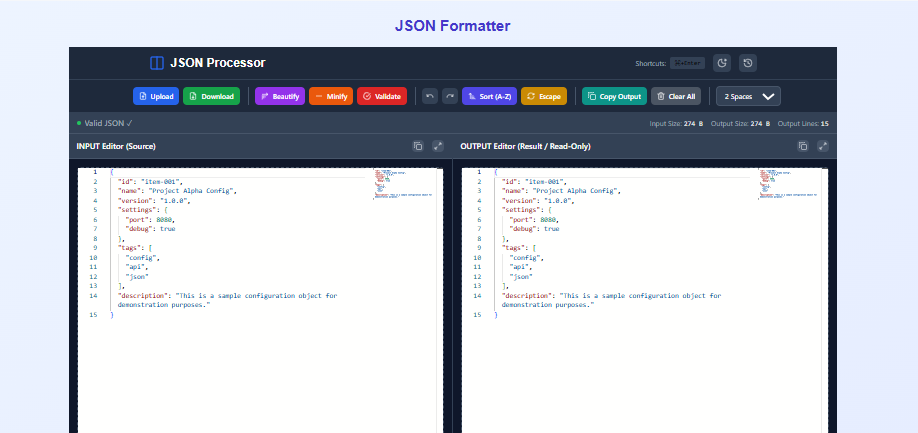
The easiest way is to use our JSON formatter tool.
Step 1: Copy your unformatted JSON Step 2: Paste it into the tool Step 3: Click Format Step 4: Copy the formatted result
That is it. Takes less than 5 seconds.
Common Formatting Options
Most JSON formatters let you choose:
- Indentation size: 2 spaces or 4 spaces
- Key sorting: Alphabetical or original order
- Bracket style: Same line or new line
For most projects, 2 spaces indentation is standard. But check your team's coding guidelines.
How to Validate JSON (Syntax Checking)
JSON validation checks if your JSON follows the correct syntax rules. Even one small mistake makes the entire JSON invalid.
Common JSON Syntax Errors
Error 1: Missing quotes around keys
// Wrong
{name: "John"}

// Correct
{"name": "John"}
Error 2: Trailing comma
// Wrong (trailing comma after "John")
{"name": "John",}

// Correct
{"name": "John"}
Error 3: Using single quotes
// Wrong
{'name': 'John'}

// Correct
{"name": "John"}
Error 4: Unclosed brackets or braces
// Wrong (missing closing brace)
{"name": "John"

// Correct
{"name": "John"}
Error 5: Comments in JSON
// Wrong (JSON does not allow comments)
{
  // This is a comment
  "name": "John"
}

// Correct
{
  "name": "John"
}
How to Validate JSON
Our JSON validator checks your JSON and tells you exactly where the error is.
Step 1: Paste your JSON into the tool Step 2: Click Validate Step 3: If valid, you will see "Valid JSON" Step 4: If invalid, the tool shows the line number and error type
For example, if you are missing a closing brace, the tool will say: "Unexpected end of JSON input. Missing closing brace at line 5."
This saves hours of manual debugging.
How to Minify JSON (Compression)
Minifying JSON means removing all unnecessary spaces, line breaks, and indentation. The result is a single line of text.
Why Minify JSON?
- Smaller file size: Minified JSON can be 50% to 80% smaller
- Faster transmission: Less data to send over the network
- Less bandwidth: Save money on API calls
- Faster parsing: Computers read minified JSON faster
Example of Minification
Before (formatted, 200 characters):
{
  "name": "John Doe",
  "email": "john@example.com",
  "address": {
    "street": "123 Main St",
    "city": "Boston"
  }
}
After (minified, 120 characters):
{"name":"John Doe","email":"john@example.com","address":{"street":"123 Main St","city":"Boston"}}
That is an 80 character reduction, about 40% smaller.
When to Use Formatted vs Minified JSON
| Use Case | Format | Reason |
|---|---|---|
| Development | Formatted | Human readable, easy to debug |
| Code reviews | Formatted | Team members can review |
| Documentation | Formatted | Examples are clear |
| Production APIs | Minified | Smaller size, faster speed |
| Mobile apps | Minified | Save bandwidth |
| Database storage | Minified | Save storage space |
| Configuration files | Formatted | Humans edit these |
How to Sort JSON Keys
Sorting JSON keys means arranging them in alphabetical order. This makes JSON more consistent and easier to compare.
Example of Key Sorting
Before sorting:
{
  "zip": "02101",
  "age": 30,
  "name": "John",
  "city": "Boston"
}
After sorting (alphabetical):
{
  "age": 30,
  "city": "Boston",
  "name": "John",
  "zip": "02101"
}
Why Sort JSON Keys?
- Consistency: Same keys in the same order every time
- Comparison: Easy to see differences between two JSON files
- Version control: Cleaner diffs in Git
- Team standards: Everyone follows the same order
Our JSON formatter includes an option to sort keys alphabetically.
How to Escape and Unescape JSON
Sometimes you need to store JSON inside a string. This requires escaping the quotes.
Escaping JSON (JSON to String)
Original JSON:
{"name": "John", "age": 30}
Escaped (for embedding in code):
"{\"name\": \"John\", \"age\": 30}"
Notice how every double quote inside has a backslash before it.
Unescaping JSON (String to JSON)
Escaped string:
"{\"name\": \"John\", \"age\": 30}"
Unescaped (back to JSON):
{"name": "John", "age": 30}
When to Escape JSON
- Storing JSON in a database text field
- Passing JSON as a URL parameter
- Embedding JSON in JavaScript code
- Sending JSON in email bodies
Our tool handles both escaping and unescaping automatically.
Real-Life Examples of JSON Formatting
Example 1: Debugging an API Response
You call an API and get this response:
{"status":"success","data":{"users":[{"id":1,"name":"Alice","email":"alice@example.com"},{"id":2,"name":"Bob","email":"bob@example.com"}],"total":2},"timestamp":"2024-01-15T10:30:00Z"}
After formatting:
{
  "status": "success",
  "data": {
    "users": [
      {
        "id": 1,
        "name": "Alice",
        "email": "alice@example.com"
      },
      {
        "id": 2,
        "name": "Bob",
        "email": "bob@example.com"
      }
    ],
    "total": 2
  },
  "timestamp": "2024-01-15T10:30:00Z"
}
Now you can clearly see the structure. You have two users inside a data object, and the response includes a timestamp.
Example 2: Fixing Invalid JSON
You have this JSON that is not working:
{
  name: "John",
  "age": 30,
  "city": "Boston",
}
Our validator will tell you:
- Line 2: Key "name" is missing quotes
- Line 4: Trailing comma not allowed
Fixed version:
{
  "name": "John",
  "age": 30,
  "city": "Boston"
}
Example 3: Preparing JSON for Production
During development, you keep JSON formatted for readability:
{
  "apiVersion": "v2",
  "endpoints": [
    "/users",
    "/orders",
    "/products"
  ],
  "timeout": 30
}
Before deploying to production, you minify it:
{"apiVersion":"v2","endpoints":["/users","/orders","/products"],"timeout":30}
This saves bandwidth and improves loading speed.
JSON Best Practices I Have Learned
1. Always Use Double Quotes
JSON requires double quotes for keys and string values. Single quotes are not allowed.
// Correct
{"name": "John"}

// Wrong
{'name': 'John'}
2. Never Add Comments
JSON does not support comments. If you need comments, use a separate documentation file or use JSON5 (a more flexible version).
3. Validate Before Using
Always validate JSON before using it in your application. I learned this after a production outage caused by an extra comma.
4. Use Consistent Indentation
In development, use either 2 spaces or 4 spaces. Never mix both. Most teams use 2 spaces.
5. Minify for Production
Formatted JSON is for humans. Minified JSON is for computers. Always minify JSON sent to production.
6. Sort Keys for Team Projects
When multiple people work on the same JSON files, sorting keys alphabetically prevents merge conflicts.
JSON in Different Development Environments
JSON for Web Development
- APIs: REST and GraphQL use JSON
- Config files: package.json, tsconfig.json, .eslintrc.json
- State management: Redux, Vuex stores use JSON
- Local storage: Browsers store data as JSON strings
JSON for Mobile Development
- API communication: App to server data exchange
- Local storage: AsyncStorage (React Native), SharedPreferences (Android), UserDefaults (iOS)
- Push notifications: JSON payloads
JSON for DevOps
- Infrastructure as code: Terraform, CloudFormation
- CI/CD: GitHub Actions workflows, GitLab CI configs
- Container configs: Docker Compose, Kubernetes
- Cloud services: AWS, Azure, GCP configurations
Frequently Asked Questions
Q: How to format JSON online for free?
A: Use our JSON formatter tool. Paste your JSON, click Format, and copy the result.
Q: How to validate if JSON is correct?
A: Use a JSON validator. Our tool checks syntax and tells you exactly where errors are.
Q: What is the difference between JSON formatter and JSON validator?
A: A formatter adds indentation and line breaks. A validator checks if the syntax is correct. Our tool does both.
Q: How to minify JSON for production?
A: Paste your formatted JSON into the tool and click Minify. It removes all spaces and line breaks.
Q: Does JSON allow comments?
A: No. Standard JSON does not support comments. Use a separate documentation file instead.
Q: What is the best JSON formatter for developers?
A: Our JSON formatter is free, fast, and works in your browser. No installation needed.
Q: How to format JSON in Visual Studio Code?
A: Press Shift + Alt + F on Windows or Shift + Option + F on Mac. Or use our online tool.
Q: What is the maximum JSON file size the formatter can handle?
A: Our tool handles files up to several megabytes. For very large files, the browser might slow down.
Q: Can I sort JSON keys alphabetically?
A: Yes. Our tool includes an option to sort all keys in alphabetical order.
Q: Does JSON formatting change the data?
A: No. Formatting only changes whitespace and line breaks. The actual data remains identical.
Q: How to escape JSON for use in a URL?
A: Use our escape feature. It converts the JSON to a string that can be safely used in URLs.
Q: Is the JSON formatter free?
A: Yes. Completely free. No signup required. No limits.
Q: Does the tool store my JSON data?
A: No. All processing happens in your browser. Your data never leaves your device.
Q: Can I use this for API testing?
A: Yes. Many developers use our tool to format and validate API responses.
Q: What is JSON5?
A: JSON5 is an extension of JSON that allows comments, single quotes, trailing commas, and other features. But standard JSON tools do not support it.
My Final Advice
After working with JSON for years across many projects, here is what I have learned.
Always format JSON before reading it. Unformatted JSON is almost impossible to understand. Five seconds of formatting saves minutes of confusion.
Validate before using. I cannot count how many times validation caught an extra comma or missing quote before it caused problems.
Minify for production. Every kilobyte matters. Minified JSON loads faster and costs less to transmit.
Keep a formatter handy. Whether it is our online tool, a VS Code extension, or a command line tool, always have a way to format JSON quickly.
And finally, do not waste time formatting JSON manually. Use a good tool. It is faster, more accurate, and less frustrating.
Try Our JSON Formatter Now – Free
Have questions about JSON formatting for your specific use case? Leave a comment below. I try to answer every one.
Tags: json formatter, how to format json, json validator, json minifier, json beautifier, online json tool, json parser, json editor, json syntax checker, api testing tool, data formatting tool, how to validate json, how to minify json, json formatter online free, json prettifier, json lint tool, json formatter for developers, json formatting best practices, json validation online, json minification tool, pretty json formatter, json syntax validator, json data formatter, json formatter extension, json formatter chrome, json formatter vscode, json formatting guide, json beautifier online, json compressor, json stringify formatter, json parse formatter