How to Create a QR Code – Free Custom QR Code Maker with PNG & SVG Download
Have you ever wanted to create your own QR code but did not know where to start? Or maybe you tried some free QR code generators but ended up with watermarked images or low quality downloads?
I remember when I was organizing a small event and wanted to put a QR code on the invitation that linked to the event registration page. I searched online for a free QR code generator. The first few tools I tried either added their own logo to my QR code or only let me download a tiny, blurry image. One tool even required me to create an account and enter my credit card information for a free trial.
After that frustrating experience, I decided to build my own QR code generator. Now I use it for everything from sharing Wi-Fi passwords with guests to adding QR codes to my business cards. This guide will show you everything I have learned about creating QR codes that actually work.
Quick access: Use our free QR code generator here
What is a QR Code? Simple Answer
A QR code (Quick Response code) is like a digital barcode that you can scan with your phone camera. When you scan it, your phone instantly opens a website, shows text, calls a phone number, or connects to Wi-Fi.
Think of it like a shortcut. Instead of typing a long website address or entering Wi-Fi passwords manually, you just point your camera at the QR code and everything happens automatically.
Example: You go to a restaurant. Instead of asking for a menu, you scan a QR code on the table. Your phone immediately opens the menu website. No typing needed.
Why Use a QR Code?
QR codes are useful in many situations. Here is what I use them for.
For business:
- Put a QR code on your business card that adds your contact info to someone's phone
- Add QR codes to product packaging that link to instruction videos
- Place QR codes on store windows that show your website or social media
- Include QR codes on invoices for easy online payment
For personal use:
- Create a Wi-Fi QR code so guests can connect without asking for the password
- Make a QR code for your digital business card
- Add QR codes to wedding invitations that link to the gift registry
- Create QR codes for luggage tags with your contact information
For education:
- Teachers can add QR codes to worksheets that link to helpful videos
- Schools can create QR codes for event registration
- Museums can add QR codes next to exhibits with more information
For events:
- Generate QR codes for tickets and entry passes
- Create QR codes for event schedules
- Make QR codes for feedback forms
How to Create a QR Code – Step by Step
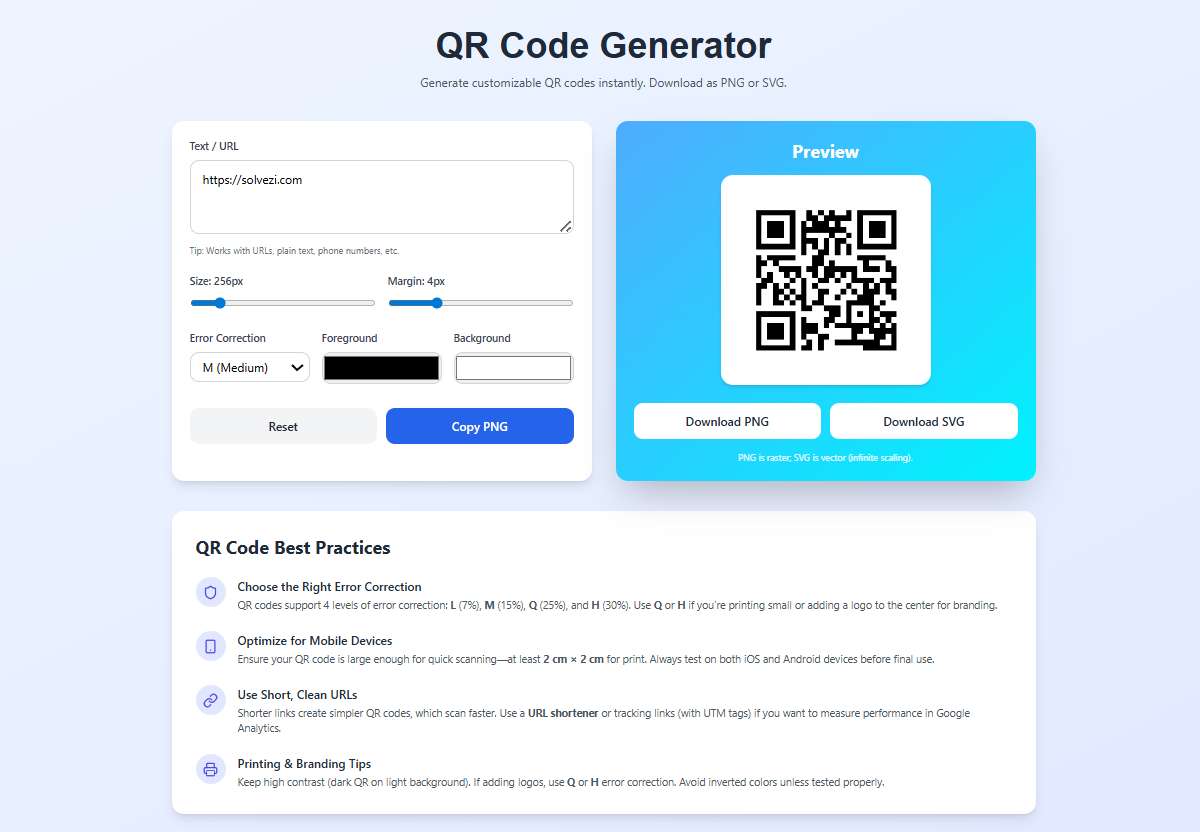
Using our QR code generator is simple. Here is how I do it.
Step 1: Enter Your Data
Type or paste what you want your QR code to do. This could be:
- A website URL (like https://solvezi.com)
- Plain text (like "Hello, scan this QR code")
- A phone number (like +1234567890)
- An email address
- Wi-Fi network details (network name and password)
Step 2: Adjust the Size
Choose how big you want your QR code image to be.
- For website use: 256px to 512px is usually enough
- For printing on small items (business cards): 512px to 1024px
- For large posters or banners: 1024px or use SVG format
Step 3: Set the Margin
Margin is the white space around your QR code. QR code scanners need this empty space to work correctly.
- Minimum margin: 2 to 4 pixels
- Recommended: 4 to 8 pixels
- For printing: 8 to 16 pixels
I usually keep it at 4 pixels for digital use and 8 pixels for printing.
Step 4: Choose Error Correction Level
Error correction helps your QR code remain scannable even if it gets dirty or damaged.
| Level | Recovery | Best For |
|---|---|---|
| L (Low) | 7% | Clean, digital use where QR code will not get damaged |
| M (Medium) | 15% | General use, standard choice |
| Q (Quartile) | 25% | When you might add a small logo or design element |
| H (High) | 30% | Printing on products that might get scratched, outdoor use |
For most situations, I use Medium (M) level. It is a good balance between scannability and QR code complexity.
Step 5: Pick Your Colors
You can change the QR code from standard black and white to any colors you want.
- Foreground color: The dark parts of the QR code
- Background color: The light parts of the QR code
Important: Make sure there is high contrast between foreground and background. Dark foreground on light background works best. Light foreground on dark background often does not scan well.
Good color combinations:
- Black on white (best, always works)
- Dark blue on light gray
- Dark green on white
- Dark red on light yellow
Bad color combinations:
- Light gray on white (not enough contrast)
- Red on green (similar brightness)
- Any light color on white
Step 6: Generate and Download
Click the generate button. Your QR code appears instantly.
Then choose how you want to save it:
- Copy PNG: Copies the QR code as an image to your clipboard. Paste it anywhere (documents, emails, design tools).
- Download PNG: Saves the QR code as a PNG file. Good for websites and digital use.
- Download SVG: Saves the QR code as an SVG file. Best for printing because it scales to any size without losing quality.
Real Examples of QR Codes I Have Created
Example 1: Wi-Fi QR Code for Guests
Instead of telling guests your long Wi-Fi password, create a QR code.
Data entered: WIFI:S:MyNetworkName;T:WPA2;P:MyPassword123;;
Settings used:
- Size: 400px
- Margin: 4px
- Error correction: M
- Colors: Black on white
Result: Guests scan the code and connect instantly. No typing required.
Example 2: Business Card QR Code
I put this QR code on my business card. When scanned, it adds my contact info to someone's phone.
Data entered: vCard format with name, phone, email, website
Settings used:
- Size: 600px (for good print quality)
- Margin: 8px (for printed card)
- Error correction: H (in case the card gets scratched)
- Colors: Dark blue on light gray
Result: One scan adds me to someone's contacts. No typing my phone number or email.
Example 3: Restaurant Menu QR Code
For a friend's restaurant, I created QR codes for each table linking to the online menu.
Data entered: examplewebsite.com/menu
Settings used:
- Size: 400px
- Margin: 4px
- Error correction: M
- Colors: Black on white (simple and always works)
Result: Customers scan, see the menu. No paper menus needed.
PNG vs SVG – Which Format Should You Download?
This confused me when I first started. Here is the simple difference.
PNG (Portable Network Graphics):
- Raster image (made of tiny dots called pixels)
- Good for digital use (websites, emails, social media)
- Fixed size. If you make it too big, it gets blurry.
- Use PNG for: Website images, email signatures, social media posts
SVG (Scalable Vector Graphics):
- Vector image (made of mathematical lines and shapes)
- Good for printing (business cards, posters, banners)
- Can be scaled to any size without losing quality
- Use SVG for: Business cards, brochures, posters, product packaging
My rule: PNG for screens, SVG for paper.
Error Correction Levels Explained in Detail
When I first saw error correction options, I had no idea what they meant. Here is what I learned.
QR codes can get dirty, scratched, or partially covered. Error correction helps the scanner still read the code even when parts are missing.
Low (7% recovery):
- QR code has fewer dots (simpler)
- Scans faster
- But if even a small part is damaged, it might not scan
- Best for: Digital use where QR code stays clean
Medium (15% recovery):
- Standard choice
- Good balance of size and damage resistance
- Best for: Most everyday uses
Quartile (25% recovery):
- QR code has more dots (more complex)
- Resists more damage
- Best for: When you might put a small logo in the middle
High (30% recovery):
- Most complex QR code
- Resists the most damage
- Best for: Printing on products, outdoor use, anything that might get scratched
The higher the error correction, the more dots your QR code has. More dots means slightly larger file size, but usually not noticeable.
How to Make Sure Your QR Code Scans Properly
I have learned these tips after creating hundreds of QR codes.
Tip 1: Test Before You Print
Always test your QR code with at least two different phones before printing many copies.
Scan it in different lighting conditions. Too dark? Too bright? Does it still scan?
Tip 2: Leave Enough Margin
Do not put other design elements too close to your QR code. QR code scanners need empty space around the code to work.
I recommend at least 4 pixels of margin for digital use and 8 pixels for printing.
Tip 3: Use High Contrast Colors
Dark foreground on light background is best. Black on white is the most reliable.
If you use colors, test the QR code on the actual material you will print on. A color that looks fine on screen might not work on colored paper.
Tip 4: Do Not Make It Too Small
For printed QR codes, make sure they are large enough.
Minimum sizes for printing:
- Business card: 0.8 inches (2cm)
- Flyer: 1.2 inches (3cm)
- Poster: 2 inches (5cm)
- Banner: 4 inches (10cm) or larger
If you make the QR code too small, phone cameras cannot focus on it properly.
Tip 5: Keep the Aspect Ratio Square
QR codes are square. Do not stretch them into rectangles. Stretching breaks the pattern and scanners will not read it.
Common QR Code Mistakes to Avoid
Mistake 1: Using a URL Shortener That Might Expire
Some URL shorteners delete links after a certain time. If the short link stops working, your QR code leads nowhere.
Solution: Use permanent URLs. If you must use a shortener, use one that does not expire.
Mistake 2: Printing Too Small
I once printed QR codes on keychains. They were too small. Nobody could scan them.
Solution: Test the smallest size that works before mass production.
Mistake 3: Putting the QR Code on a Curved Surface
QR codes need to be flat to scan. If you put them on a curved bottle or rounded surface, they might not work.
Solution: Place QR codes on flat areas only.
Mistake 4: Using Low Quality Printing
A blurry QR code will not scan. Cheap printers or low resolution printing can make QR codes unreadable.
Solution: Use high resolution images (SVG format) and good quality printing.
Mistake 5: Not Testing After Printing
What looks good on screen might look different on paper. Colors change. Contrast reduces.
Solution: Always test a printed sample before printing hundreds or thousands.
Static QR Codes vs Dynamic QR Codes
There are two types of QR codes. Understanding the difference helps you choose the right one.
Static QR Codes
Static QR codes have the data directly encoded into the pattern. You cannot change what they do after creating them.
Pros:
- Free to create (like our tool)
- Permanent, never expire
- No account needed
- Works offline
Cons:
- Cannot change the destination after printing
- No tracking (you cannot see how many people scanned)
Best for: Personal use, business cards, Wi-Fi sharing, anything permanent
Dynamic QR Codes
Dynamic QR codes contain a short link that redirects to your actual content. You can change where the QR code points even after printing.
Pros:
- Can change the destination anytime
- Track scan counts and locations
- Can update content without reprinting
Cons:
- Usually requires a paid subscription
- Requires internet to work
- Can expire if you stop paying
Best for: Marketing campaigns, temporary promotions, A/B testing
Our tool creates static QR codes. They are free, permanent, and work forever.
How to Add a Logo to Your QR Code
Our tool does not add logos directly because adding logos can break scannability. But here is how you can do it safely.
Method 1: Use High Error Correction
Set error correction to High (H) or Quartile (Q) before generating. This adds extra data that makes the QR code more resistant to damage.
Method 2: Add Logo in SVG Editor
- Download your QR code as SVG
- Open in a vector editor (Inkscape, Illustrator, or even Canva)
- Add your small logo in the center
- Keep the logo small (less than 20% of QR code size)
- Test that it still scans
Important: Adding a logo always makes the QR code harder to scan. Test thoroughly before mass printing.
Frequently Asked Questions
Q: How to create a QR code for a website URL?
A: Enter the full website address (including https://) in our QR code generator. Choose your settings. Download the QR code. That is it.
Q: How to create a QR code for Wi-Fi?
A: Enter WIFI:S:YourNetworkName;T:WPA2;P:YourPassword;; in the text box. Replace YourNetworkName and YourPassword with your actual Wi-Fi details.
Q: How to create a QR code for a phone number?
A: Enter tel:+1234567890 (replace with your actual phone number). When scanned, the phone will ask if the user wants to call that number.
Q: How to create a QR code for an email address?
A: Enter mailto:email@example.com (replace with your actual email). When scanned, the phone will open the email app with that address filled in.
Q: What is the best free QR code generator?
A: Our QR code generator is completely free, has no watermarks, and lets you download PNG and SVG files.
Q: Can I change QR code colors?
A: Yes. You can change both foreground and background colors. Make sure there is high contrast between them.
Q: What is error correction in QR code?
A: Error correction helps QR codes remain scannable even if they are damaged or dirty. Higher levels mean more damage resistance but more complex codes.
Q: What size QR code should I create?
A: For digital use, 256px to 512px is enough. For printing, use SVG format so you can scale to any size.
Q: How to download QR code as PNG?
A: After generating your QR code, click the Download PNG button. The image will save to your device.
Q: How to download QR code as SVG?
A: After generating your QR code, click the Download SVG button. SVG files are best for printing.
Q: Can I copy QR code to clipboard?
A: Yes. Click the Copy PNG button. The QR code copies as an image. Paste it anywhere.
Q: Do QR codes expire?
A: Static QR codes (like the ones our tool creates) never expire. They work forever.
Q: How many characters can a QR code store?
A: About 3000 characters for text, but fewer for website URLs. For most uses, this is plenty.
Q: Can I print QR codes on products?
A: Yes. Download as SVG for best print quality. Make sure the QR code is large enough to scan (at least 1 inch or 2.5cm).
Q: Does the QR code generator work on mobile?
A: Yes. Our tool works on phones, tablets, and computers. You can create QR codes from any device.
Q: Is the QR code generator free?
A: Yes. Completely free. No signup. No watermarks. No limits.
Q: Can I use the QR codes for business?
A: Yes. Unlimited commercial use is allowed. No attribution required.
Q: Does the tool store my data?
A: No. Everything happens in your browser. Your data never leaves your device.
Q: What is the difference between PNG and SVG?
A: PNG is for digital use (websites, emails). SVG is for printing (business cards, posters). SVG can scale to any size without losing quality.
My Final Advice
After creating hundreds of QR codes for myself and my clients, here is what I have learned.
Keep it simple. Black on white, medium error correction, reasonable size. That works every time.
Always test. Before printing 1000 copies, print one and test it on multiple phones. It takes two minutes and saves you from disaster.
Use SVG for printing. PNG images can get blurry when printed large. SVG stays sharp at any size.
Do not overcomplicate. Fancy colors and logos look nice but can make QR codes harder to scan. If you need reliability, stick to simple designs.
Save your original data. Keep a note of what URL or text you used. If you need to make changes later, you will know what you originally encoded.
And finally, use a good QR code generator. Manual creation is impossible. Bad tools add watermarks or limit your downloads. Our tool gives you full control with no restrictions.
Create Your QR Code Now – Free Tool
Have questions about creating QR codes for a specific use case? Leave a comment below. I try to answer every one.
Tags: qr code generator, how to create qr code, free qr code maker, online qr generator, create qr code png svg, qr code with logo, custom qr code colors, qr code for url, qr code for text, qr code for phone number, qr code for email, qr code for wifi, qr code generator free online, qr code maker free no signup, custom qr code generator, qr code download png, qr code download svg, qr code for business card, qr code for website link, qr code for payment, dynamic qr code vs static qr code, what is error correction in qr code, qr code best practices, qr code size guide, qr code margin guide, qr code color change, how to make qr code for free, qr code generator no watermark, printable qr code generator, high resolution qr code, vector qr code svg