Online Stopwatch – Complete Guide to Accurate Time Tracking
Have you ever needed to time something precisely but did not have a stopwatch handy? Or maybe you tried using your phone's stopwatch but found it distracting with notifications and calls?
I remember preparing for a certification exam. I wanted to time my practice tests to simulate real exam conditions. I used my phone's stopwatch, but every few minutes, a notification would pop up and break my concentration. I needed something distraction-free.
Then I discovered online stopwatches. No notifications. No distractions. Just a clean, fullscreen timer that I could start, stop, and reset with keyboard shortcuts. It helped me track my progress and improve my speed.
This guide will teach you everything you need to know about using an online stopwatch. Whether you are timing workouts, study sessions, or work tasks, you will learn how to track time accurately.
Quick access: Use our free stopwatch here
What is a Stopwatch? Simple Answer
A stopwatch is a timekeeping device that measures the duration of an event from start to finish. Unlike a clock that shows the current time, a stopwatch shows how much time has passed since you started it.
Simple example:
- You start the stopwatch at the beginning of a run
- You stop it when you finish the run
- The stopwatch shows exactly how long the run took
Modern stopwatches can measure time in hours, minutes, seconds, and milliseconds (1/100th of a second).
Why Use an Online Stopwatch?
Online stopwatches offer advantages over physical or phone-based stopwatches.
For fitness and workouts:
- Time your runs, swims, or bike rides
- Track rest periods between sets
- Measure interval training sessions
- Record workout durations for progress tracking
For studying and exams:
- Time practice tests to simulate exam conditions
- Track study sessions using Pomodoro technique (25 minutes work, 5 minutes rest)
- Measure how long you spend on each subject
- Build speed for timed exams
For work and productivity:
- Track time spent on specific tasks
- Measure meeting durations
- Time breaks and lunch periods
- Improve time management
For cooking:
- Time boiling eggs, pasta, or rice
- Track roasting and baking times
- Measure resting periods for dough
For gaming and speedrunning:
- Track completion times for levels or games
- Measure speedrun attempts
- Compare performance across sessions
For laboratory and experiments:
- Measure reaction times
- Track experiment durations
- Record precise time intervals
How to Use a Stopwatch – Basic Operations
Using a stopwatch is simple, but understanding all the features helps you use it effectively.
Start
Begins counting time from zero. The stopwatch starts measuring elapsed time in hours, minutes, seconds, and milliseconds.
When to use: Beginning any timed activity (starting a run, beginning a test, starting a task)
Stop
Pauses the stopwatch. Time stops counting. You can resume later.
When to use: Pausing during breaks, finishing a timed activity, checking intermediate time
Reset
Sets the stopwatch back to zero. All current time is cleared.
When to use: Starting a new timing session, clearing previous time
Lap / Split (if available)
Records intermediate times without stopping the stopwatch.
Example: On a running track, you can record your time for each lap without stopping the overall timer.
How to Use Our Online Stopwatch
Our stopwatch tool is designed for accuracy and ease of use.
Step 1: Open the stopwatch page
Step 2: Click Start or press the Spacebar to begin timing
Step 3: Click Stop or press Spacebar again to pause
Step 4: Click Reset or press R to clear the current time
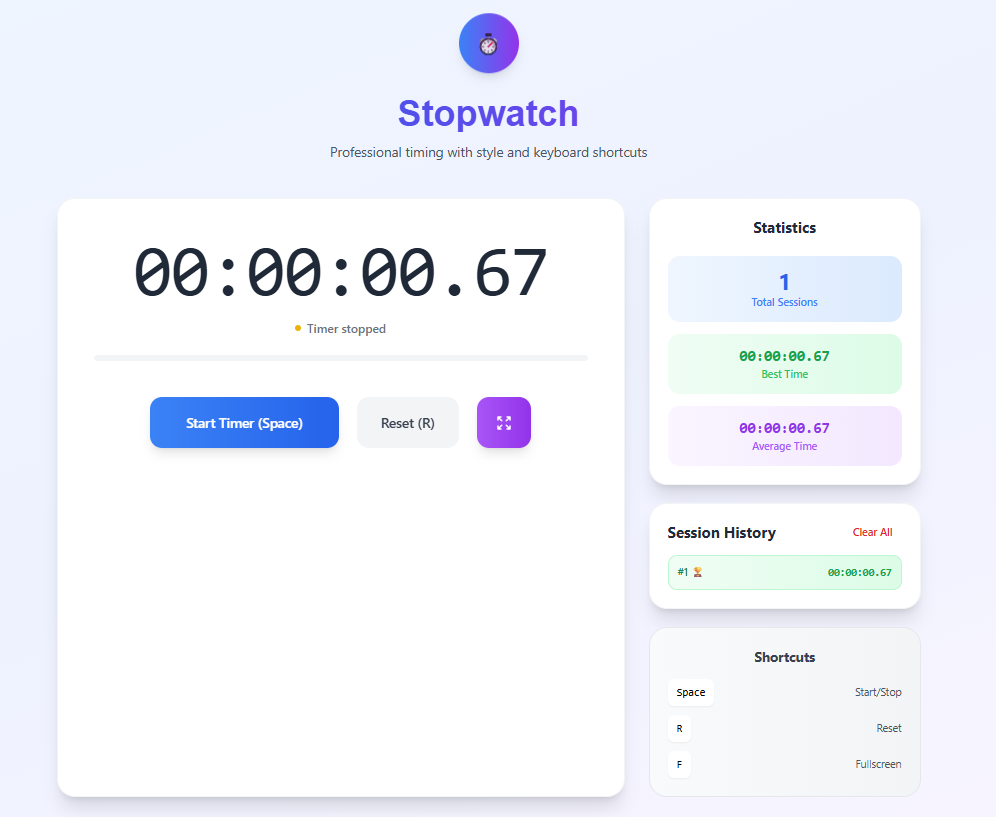
Step 5: Press F to enter fullscreen mode (distraction-free)
Step 6: Press Esc to exit fullscreen mode
Session history:
- Every completed timing session is saved automatically
- View your best time (fastest session)
- View your average time across all sessions
- Total number of sessions recorded
- Clear history when needed
All timing uses your device's system clock for maximum accuracy. No data is sent to any server.
Stopwatch Keyboard Shortcuts
Keyboard shortcuts make using the stopwatch faster, especially during activities where you cannot use a mouse.
| Shortcut | Action | When to use |
|---|---|---|
| Spacebar | Start / Stop | Quick start and stop without clicking |
| R | Reset | Clear current time |
| F | Fullscreen | Enter fullscreen mode for distraction-free timing |
| Esc | Exit fullscreen | Return to normal view |
Pro tip: During a workout, keep your hands on the keyboard. Press Spacebar to start timing your rest period. Press Spacebar again to stop. You never need to look away from your workout.
Fullscreen Mode for Distraction-Free Timing
Fullscreen mode is one of the most useful features of an online stopwatch.
Benefits of fullscreen mode:
- No browser tabs or address bar visible
- No notifications from other apps
- Large, easy-to-read display
- Perfect for presentations, classrooms, or gyms
- Focus on the activity, not the device
How to use fullscreen mode:
- Press F on your keyboard
- The stopwatch fills the entire screen
- Use Spacebar to start/stop
- Press Esc to exit
Best for:
- Classroom exams (projected on a screen)
- Gym workouts (phone or tablet in fullscreen)
- Presentations (timing speaker sessions)
- Study sessions (minimize distractions)
Session History and Statistics
One feature that sets our stopwatch apart is session history tracking.
What gets recorded:
- Each timing session: Every time you start and stop (without resetting in between)
- Duration: How long the session lasted
- Timestamp: When the session occurred
Statistics provided:
- Total sessions: Number of completed timing sessions
- Best time: Shortest recorded duration
- Average time: Mean duration across all sessions
How to use session history:
For runners: Track your run times across multiple sessions. See if you are improving.
For students: Time each practice test. Compare your speed across attempts.
For productivity: Track how long different tasks take. Find patterns in your work.
For cooking: Record cooking times for recipes. Replicate perfect results.
Clearing history:
- Click the "Clear All" button
- Confirm your choice
- All session history is removed
- Statistics reset to zero
Real-Life Examples of Using a Stopwatch
Example 1: Runner Tracking Workout
Scenario: A runner wants to track their 5K run time each day.
Using the stopwatch:
- Press Spacebar at the start of the run
- Run 5 kilometers
- Press Spacebar at the finish line
- Stopwatch shows: 25 minutes, 32 seconds
- Session is saved to history
Next day:
- Press Spacebar at the start
- Complete the run
- Stopwatch shows: 24 minutes, 48 seconds
- New session saved
- Check history: Best time updates to 24:48
Example 2: Student Timing Practice Test
Scenario: A student is preparing for a 60-minute exam. They want to practice finishing within the time limit.
Using the stopwatch:
- Press Spacebar when starting the practice test
- Work through questions
- Check stopwatch periodically
- Press Spacebar when finished
- Stopwatch shows: 52 minutes, 15 seconds (within limit)
Track improvement:
- Session 1: 58 minutes
- Session 2: 55 minutes
- Session 3: 52 minutes
- Session 4: 49 minutes
Average time decreases, showing improvement.
Example 3: Cook Timing Pasta
Scenario: A cook wants perfectly al dente pasta every time.
Using the stopwatch:
- Drop pasta into boiling water
- Press Spacebar immediately
- Cook for package-recommended time (e.g., 9 minutes)
- Press Spacebar at 9 minutes
- Perfect pasta every time
Session history records:
- Each cooking session saved
- Best time always 9 minutes
- Average time shows consistency
Example 4: Office Worker Tracking Tasks
Scenario: An office worker wants to understand where their time goes during the day.
Using the stopwatch:
- Start stopwatch when beginning email response
- Stop when emails are done → 25 minutes
- Reset, start when beginning report
- Stop when report is done → 45 minutes
- Reset, start for meeting
- Stop at meeting end → 30 minutes
Session history shows:
- Total sessions: 3
- Average time: 33.3 minutes
- Helps identify time-wasting activities
Example 5: Gamers Speedrunning
Scenario: A gamer is trying to complete a level as fast as possible.
Using the stopwatch:
- Press Spacebar at level start
- Complete the level
- Press Spacebar at level end → 2 minutes, 15 seconds
- Reset, try again → 2 minutes, 8 seconds
- Reset, try again → 1 minute, 59 seconds
Session history shows:
- Best time: 1 minute, 59 seconds
- Track improvement across attempts
Stopwatch vs Timer – What is the Difference?
Many people confuse stopwatches and timers. They serve different purposes.
| Feature | Stopwatch | Timer |
|---|---|---|
| What it does | Counts up from zero | Counts down from a set time |
| When to use | Measuring how long something takes | Limiting how long something lasts |
| Example | Timing a run | Setting a 10-minute break |
| Alarm | No (usually) | Yes (when time reaches zero) |
| Best for | Open-ended activities | Fixed-duration activities |
Use a stopwatch when:
- You do not know how long something will take
- You want to measure duration
- You are comparing times across attempts
Use a timer when:
- You have a fixed duration in mind
- You need an alarm when time is up
- You want to limit an activity
Our tool is a stopwatch (counts up). For countdown timers, check our other tools.
Accuracy of Online Stopwatches
Online stopwatches are very accurate, but there are factors to consider.
How accuracy works:
- Uses your device's system clock (millisecond precision)
- Modern devices have very accurate clocks (within milliseconds per day)
- Browser timing functions are precise to milliseconds
Potential accuracy issues:
Browser throttling: Some browsers slow down timers in inactive tabs to save battery. Keep the stopwatch tab active for best accuracy.
System clock drift: Computer clocks can drift over time but sync with internet time servers. Modern devices drift very little.
CPU load: Very high CPU usage can affect timing precision. Close other applications for best results.
Real-world accuracy: For most uses (workouts, studying, cooking, gaming), online stopwatches are more than accurate enough. You do not need millisecond precision for timing a 30-minute run.
Tips for Using a Stopwatch Effectively
Use keyboard shortcuts. Spacebar to start/stop is much faster than clicking. Keep your hands on the keyboard during timed activities.
Use fullscreen mode for focus. No notifications, no distractions. Just the time.
Reset between different activities. If you are timing multiple different things, reset between them. This keeps your session history clean.
Review your session history. Look at your best times and average times. Are you improving? Where can you speed up?
Combine with a timer for intervals. Use a stopwatch to track total workout time and a timer for rest periods between sets.
Keep the stopwatch visible. Position the window where you can see it without stopping your activity. Fullscreen mode helps with this.
Common Stopwatch Mistakes to Avoid
Mistake 1: Forgetting to Reset
Problem: You finish timing one activity and start timing another without resetting. The second activity includes time from the first.
Solution: Always press Reset before starting a new timed activity.
Mistake 2: Not Using Fullscreen
Problem: Notifications and other tabs distract you during timed activities.
Solution: Press F to enter fullscreen mode. No distractions.
Mistake 3: Stopping and Starting Instead of Resetting
Problem: You finish an activity, stop the stopwatch, then start it again for the next activity. The stopwatch continues from where it stopped.
Solution: Reset between different activities. Stop is for pausing within the same activity.
Mistake 4: Relying Only on Visual Check
Problem: You glance at the stopwatch but do not record your time.
Solution: Session history automatically records every completed session. Use it to track progress.
Mistake 5: Ignoring Session History
Problem: You time activities but never review your history.
Solution: Review your times regularly. Look for patterns and improvement.
Frequently Asked Questions
Q: How to use an online stopwatch?
A: Click Start (or press Spacebar) to begin timing. Click Stop (or Spacebar again) to pause. Click Reset (or press R) to clear. Use our free stopwatch for instant timing.
Q: Is the online stopwatch accurate?
A: Yes. It uses your device's system clock with millisecond precision. For most uses (workouts, studying, cooking), it is more than accurate enough.
Q: Does the stopwatch work offline?
A: Once the page is loaded, it works without an internet connection. Keep the tab open.
Q: How to use stopwatch on phone?
A: Our stopwatch is fully responsive. Open it in your mobile browser. Tap Start/Stop. Use fullscreen mode for better visibility.
Q: What is the difference between stopwatch and timer?
A: A stopwatch counts up from zero (measures duration). A timer counts down from a set time (alerts when time is up).
Q: How to record lap times?
A: Our current version focuses on session history. Each completed session is saved. For multiple laps within one session, stop and restart to record each lap as a separate session.
Q: Can I use keyboard shortcuts?
A: Yes. Spacebar = Start/Stop, R = Reset, F = Fullscreen, Esc = Exit fullscreen.
Q: What is fullscreen mode?
A: Fullscreen mode makes the stopwatch fill your entire screen. No browser tabs, address bar, or distractions. Press F to activate.
Q: Does the stopwatch save my history?
A: Yes. Every completed timing session is saved automatically in your browser. You can view best time, average time, and total sessions.
Q: How to clear session history?
A: Click the Clear All button and confirm. All saved sessions and statistics will be removed.
Q: Can I use this for interval training?
A: Yes. Start the stopwatch at the beginning of your workout. Use the display to track intervals. Session history shows total workout time.
Q: Is the stopwatch free?
A: Yes. Completely free. No signup. No limits. No ads.
Q: Does the stopwatch work on mobile?
A: Yes. Fully responsive. Works on phones, tablets, and computers.
Q: How precise is the stopwatch?
A: It measures time to 1/100th of a second (milliseconds). This is precise enough for almost all uses.
Q: Can I use the stopwatch for exams?
A: Yes. Fullscreen mode is perfect for timing practice tests. For actual exams, check your institution's policy on electronic devices.
My Final Advice
After using stopwatches for years in various contexts, here is what I have learned.
Use keyboard shortcuts. Once you get used to Spacebar for start/stop, you will never go back to clicking. It is faster and more accurate.
Use fullscreen mode for focus. When you need to concentrate, distractions are your enemy. Fullscreen mode removes everything except the timer.
Review your session history. The data is there for a reason. Look at your best times. Look at your average times. Use the information to improve.
Reset between different activities. Do not let one session bleed into another. Reset keeps your history clean and meaningful.
Combine stopwatch with timer for best results. Use stopwatch for total workout time. Use timer for rest periods. Together, they give you complete control.
Keep it simple. You do not need complex features for most timing needs. Start, stop, reset, and history are enough for 95% of uses.
And finally, use a good stopwatch. Our tool gives you accuracy, fullscreen mode, keyboard shortcuts, and session history. It is free and works anywhere.
Start Timing Now – Free Stopwatch
Have questions about using a stopwatch for a specific activity? Leave a comment below. I try to answer every one.
Tags: online stopwatch, how to use stopwatch, digital stopwatch, time tracker, stopwatch with history, stopwatch fullscreen, stopwatch for workouts, stopwatch for study, stopwatch for coding, stopwatch for exams, stopwatch with keyboard shortcuts, stopwatch with session statistics, stopwatch timer online free, accurate stopwatch, stopwatch for productivity, stopwatch for presentations, stopwatch for cooking, stopwatch for games, stopwatch for speedrunning, stopwatch for laboratory, stopwatch for fitness, stopwatch for interval training, stopwatch for pomodoro, stopwatch with milliseconds, stopwatch with hours minutes seconds, stopwatch reset, stopwatch start stop, best online stopwatch